A cloud phone is a real Android device running on our hardware and streamed to whatever you are holding. Creating one takes a few minutes from the Store tab, and most of that is the phone being set up.
Before you start
- Verify your email address. Buying a phone needs a verified address, because that is where receipts, renewal reminders and security notices go. If you skipped the code when you signed up, the Account tab lets you send another.
- Have a way to pay. The app shows the ways to pay that are open right now: your wallet balance, a card, or Google Play on Android. How paying works explains each.
Create the phone
-
Open the Store tab
Or tap New phone on the Devices tab. Either lands you on Choose your phone.
-
Pick a package
Lite, Cloud, Pro or Gaming. The card under the row shows the cores, memory and storage of the one you have selected, and whether root is available on it. If you are unsure, Cloud is the one most people end up on. Which package should I pick? compares all four.
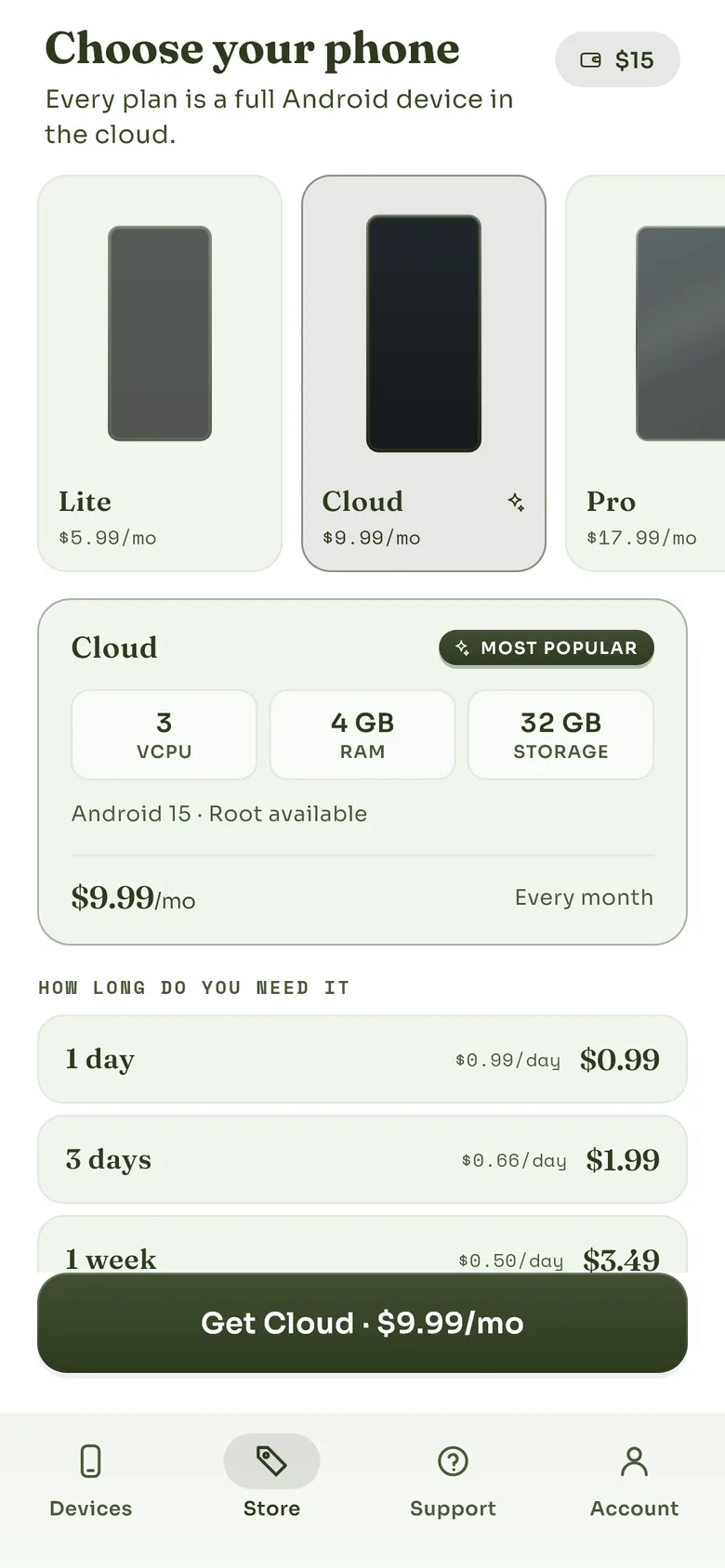
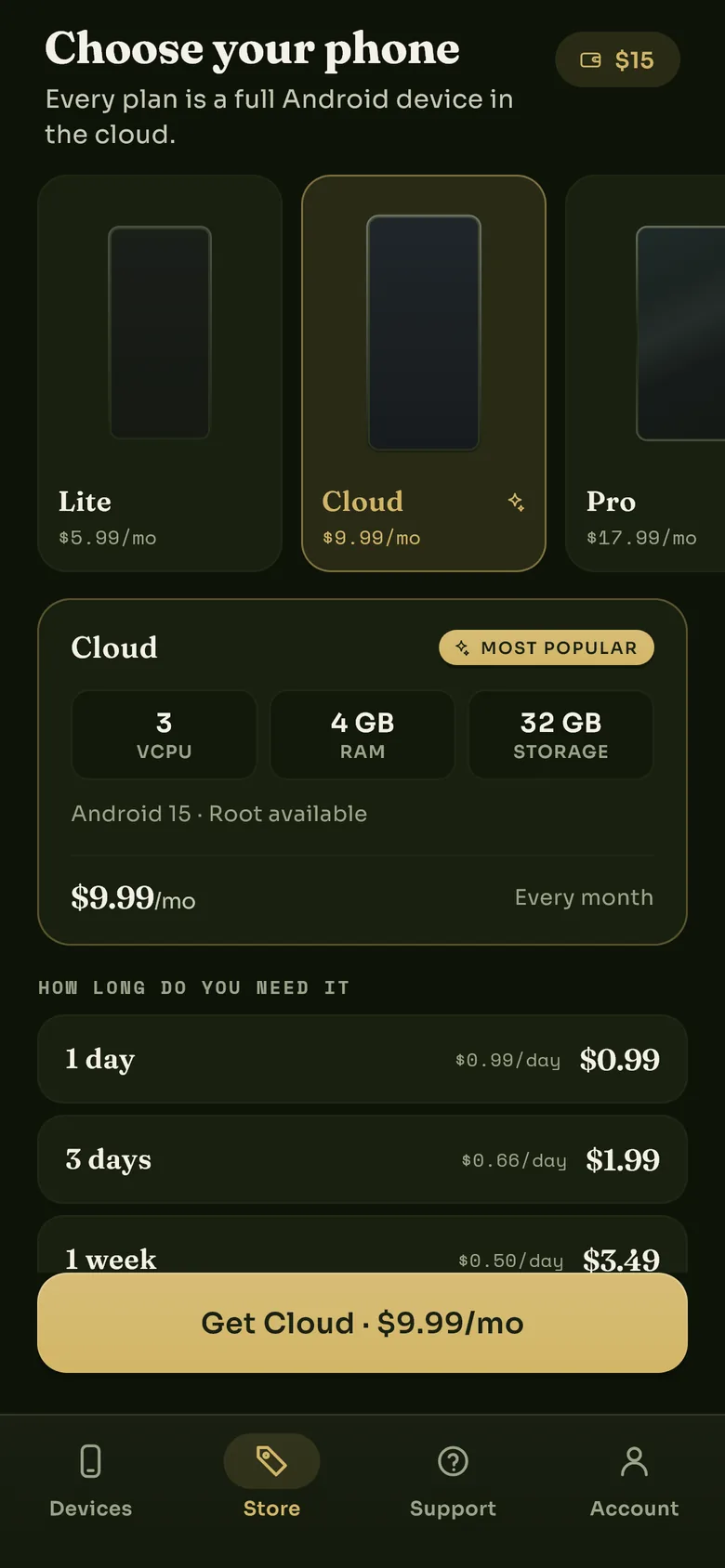
The package card shows what you are getting; the list below it shows how long you can have it for.
-
Choose how long you need it
Anything from a day to a year. Longer terms cost less per day, and you can extend later without losing what is on the phone. The price beside each term is what you pay today for that term.
-
Choose Android 14 or 15, and a region
Pick the Android version your apps expect. It cannot be changed once the phone exists. The region is where the phone physically runs, and closer is better for streaming; Choosing a region explains the latency figure. Regions with no servers right now are shown greyed out.
-
Name it and review
The name is for you and can be changed later. The review step is where a coupon code goes, and where you see exactly what will be charged and what it renews at. Then confirm.
-
Wait for it to come online
You are charged for the first term straight away, and the phone appears on the Devices tab as Provisioning with a progress figure. It usually takes a few minutes. A notification arrives when it is ready, and the tile changes to Online.
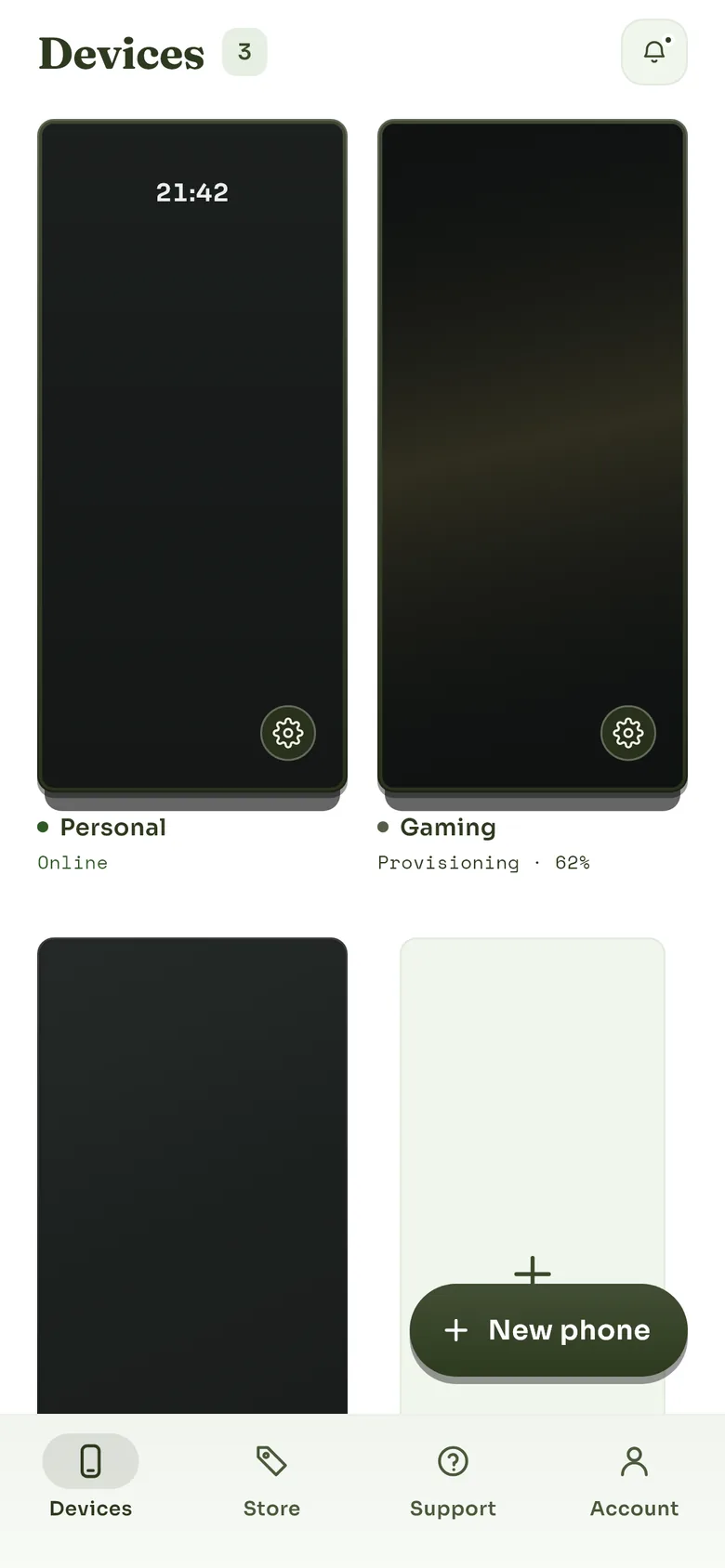
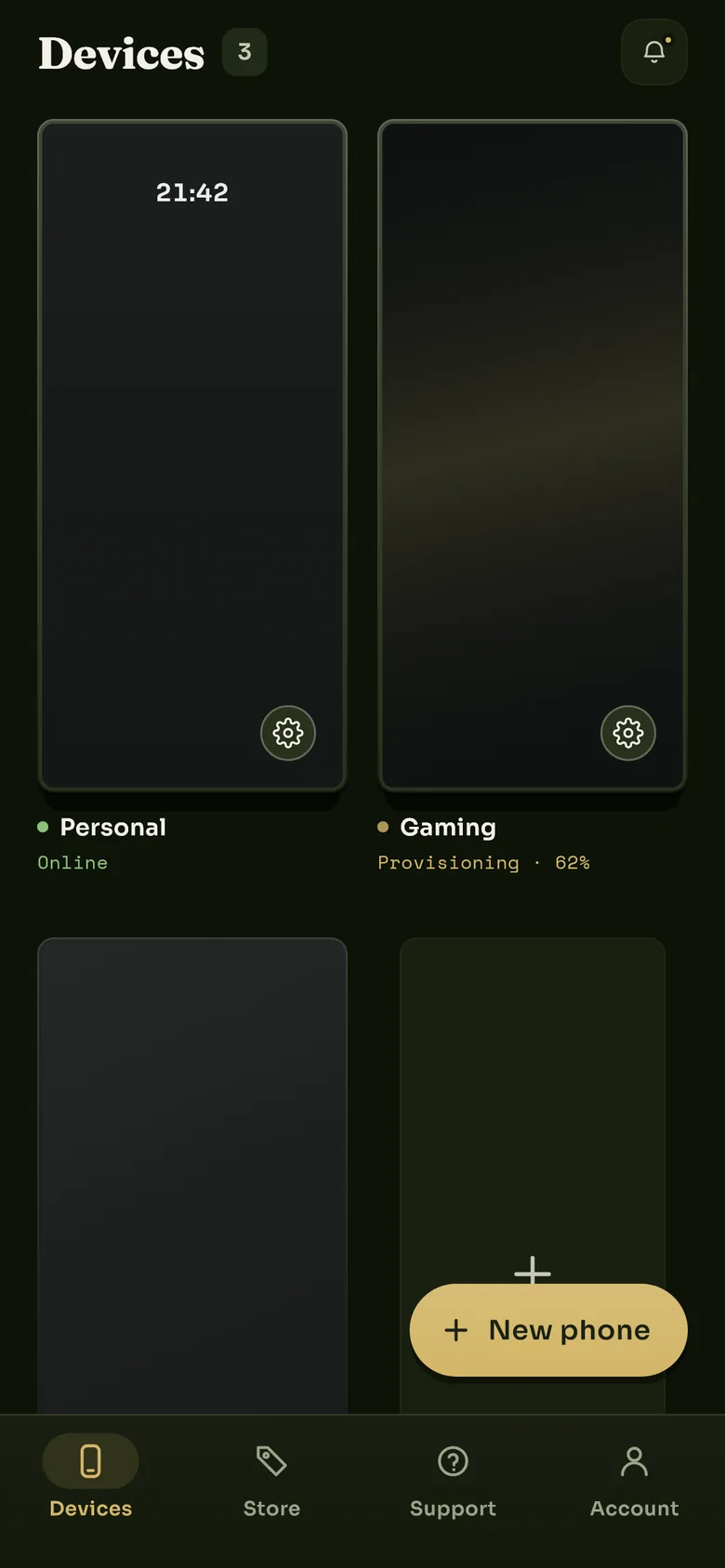
A phone being set up shows its progress under its name; a ready one shows Online.
If setup fails, you are not out of pocket. Occasionally a phone cannot be set up. When that happens the payment is refunded automatically to the method you paid with (a wallet purchase back to the wallet), the phone is removed from your account, and a notification tells you so. Try again, or try another package or region.
What you might see instead
- No capacity for this package here. Every server in that region is full for that package at the moment. Nothing was charged. A smaller package, or another region, may still be available.
- Region unavailable. The region went offline between the picker loading and you confirming. Pick again.
- Device limit reached. An account can hold a limited number of phones at once. Delete one you no longer use, or let it lapse.
- Verify your email first. Confirm the code we sent you, then try again.
Next
Tap the phone to see its screen, then Open Phone to stream it. Opening and controlling your phone covers the viewer, and moving files covers getting things on and off it.
Still stuck? Write to us and we will answer.