A cloud phone's storage behaves like storage you own. You can put files on it, take them back, browse what is there, grab the screen, and move text between the phone and whatever you are sitting at.
The phone has to be online. Files, screenshots and the clipboard all talk to the running phone. If it is powered off, start it first; the app says so if you try.
Files
Tap Files on the phone's screen.
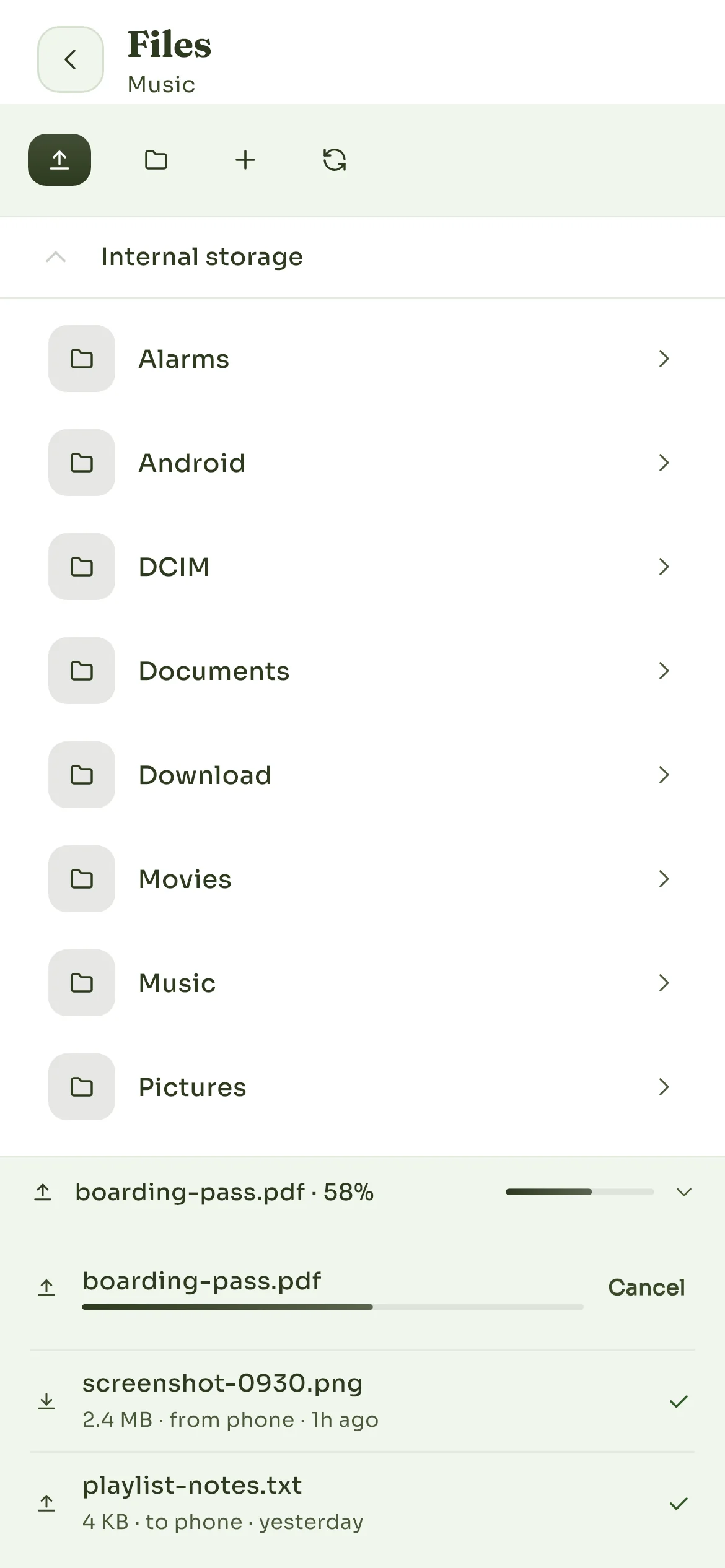
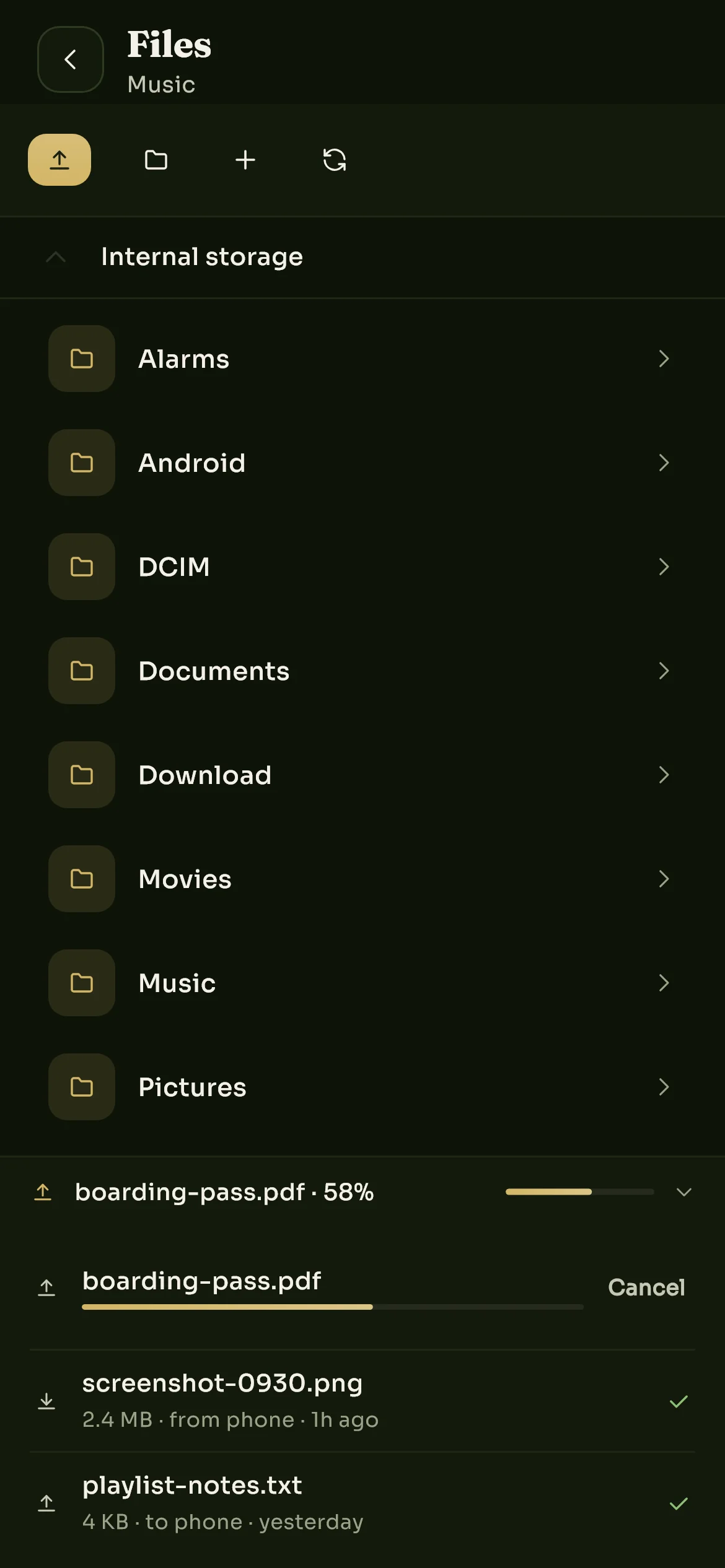
Your folders, a toolbar to send a file, make a folder or refresh, and your transfers underneath.
- Send to phone uploads a file from the device you are using. It lands in the phone's shared storage, the same place a download on a physical phone would go, so any app on the phone can open it. One file at a time, up to 64 MB each.
- Saving from the phone: browse to the file in the folder list (Download, Pictures and Documents are the usual places) and download it to the device you are using.
- Transfers, at the bottom, shows what is moving, with Cancel for anything still in progress.
When a phone passes 90% full you get a notice; Storage is nearly full covers what to do.
Screenshots
Screenshot captures the phone's screen as it is right now and saves the picture on the phone, where it appears under Files. Save it from there to keep a copy.
Separately, the app keeps a small preview of each phone for the Devices tab. It is captured automatically at a few moments, such as when you close the viewer, and it is only ever shown to you and to anyone you have shared that phone with.
Clipboard
Clipboard lets you read what the phone last copied and put text of your own on its clipboard, ready to paste into any app there. While the viewer is open, something copied on the phone can be picked up on your side too.
Typing accents, other scripts or emoji in the viewer goes through the phone's clipboard, so it replaces whatever was on it. Copy anything you need from the phone's clipboard before typing.
What we keep
File contents stay on the phone. We record only the name, path and size of what you transfer, and nothing about what is inside. The privacy policy sets it out.
Still stuck? Write to us and we will answer.