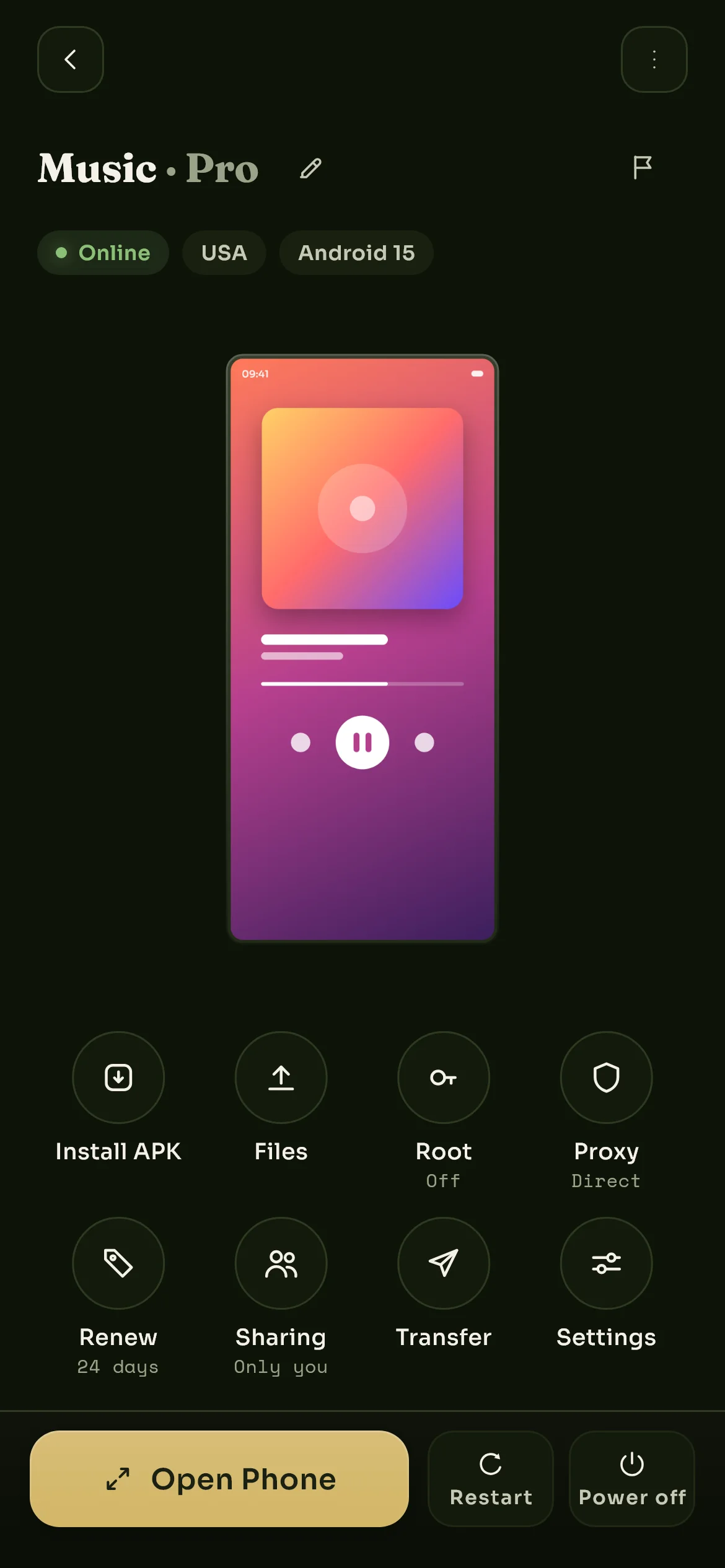
Tap a phone on the Devices tab to reach its screen in the app: a live picture of the phone, and round buttons for installing apps, files, the proxy, renewing, sharing, transferring and its settings. Open Phone at the bottom streams it live to whatever you are holding.
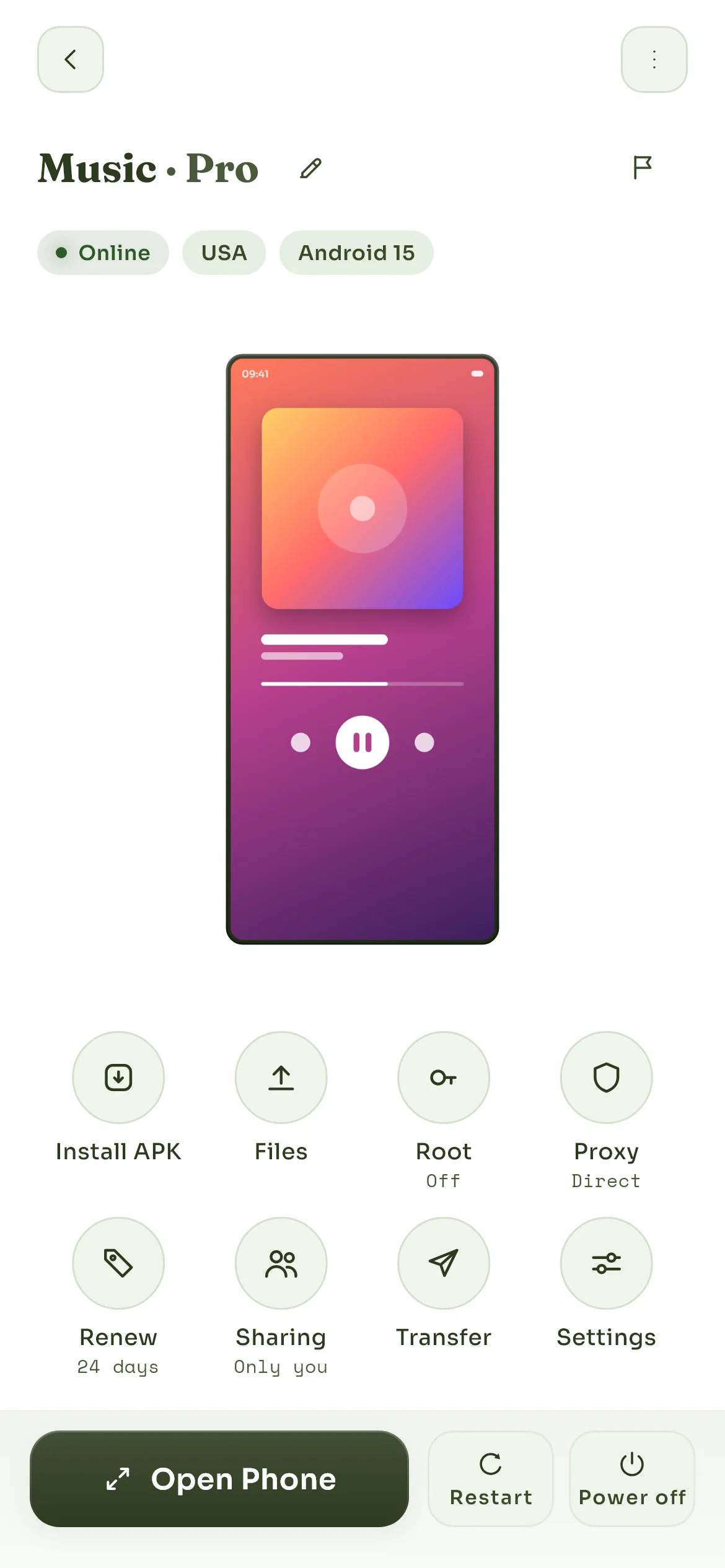
Everything a phone can do is one screen away. Open Phone streams it.
In the viewer
- Touch lands where you put it. Tap, scroll, drag and long-press all go through as real gestures.
- Typing goes through too. On Android, the app's keyboard opens and closes in step with the cloud phone's own, and it matches the field you are in, so a password field stays hidden and a search field gets a search key. A return key that means send or search does the right thing.
- Rotate turns the phone through 90 degrees at a time.
- The controls button floats over the stream. You can pin it to an edge, choose which side it lives on, or hide it and reveal it with the back gesture. These are under Account, in Preferences, and they follow your account to any device you sign in on.
- Fit shows the whole screen with bars at the sides, or fills your screen and crops the edges; also under Preferences.
- Back opens the controls first and leaves the phone on the second press, so a stray back gesture does not drop you out. You can change it to leave immediately.
- The latency pill shows the round trip between you and the phone: Excellent under 50 ms, Good under 100, Fair under 200, Poor beyond. It hides itself unless you pin it.
Closing the viewer does not stop the phone
The phone lives on our machines, so closing the viewer is just closing a window. Downloads keep downloading, sessions stay signed in, and anything you left running is still running tomorrow. If your connection drops, the viewer has thirty seconds to reconnect on its own before it needs reopening; the phone does not notice either way.
Who else can be watching
A phone can be open in a few viewers at once, for example on your Android phone and your Windows machine, or by someone you have shared it with. There is a small limit; beyond it the newest viewer is told the phone already has its maximum number of viewers.
How full the phone is
The phone's screen does not show live figures for its processor, memory or network. When a phone's storage passes 85%, the Devices tab shows a banner saying how much of it is used, and tapping it opens the phone. Storage is nearly full explains how to free space.
Choppy picture? The stream depends on your own connection and how far you are from the region you picked. The stream is choppy or laggy walks through what to check.
Still stuck? Write to us and we will answer.