Your phone has just come online. This is the shortest path from that notification to an app running on it. Five steps, five minutes.
-
Open it
On the Devices tab the tile shows Online. Tap it, then tap Open Phone at the bottom. The screen streams to you within a second or two; the first time can take a little longer while the connection settles.
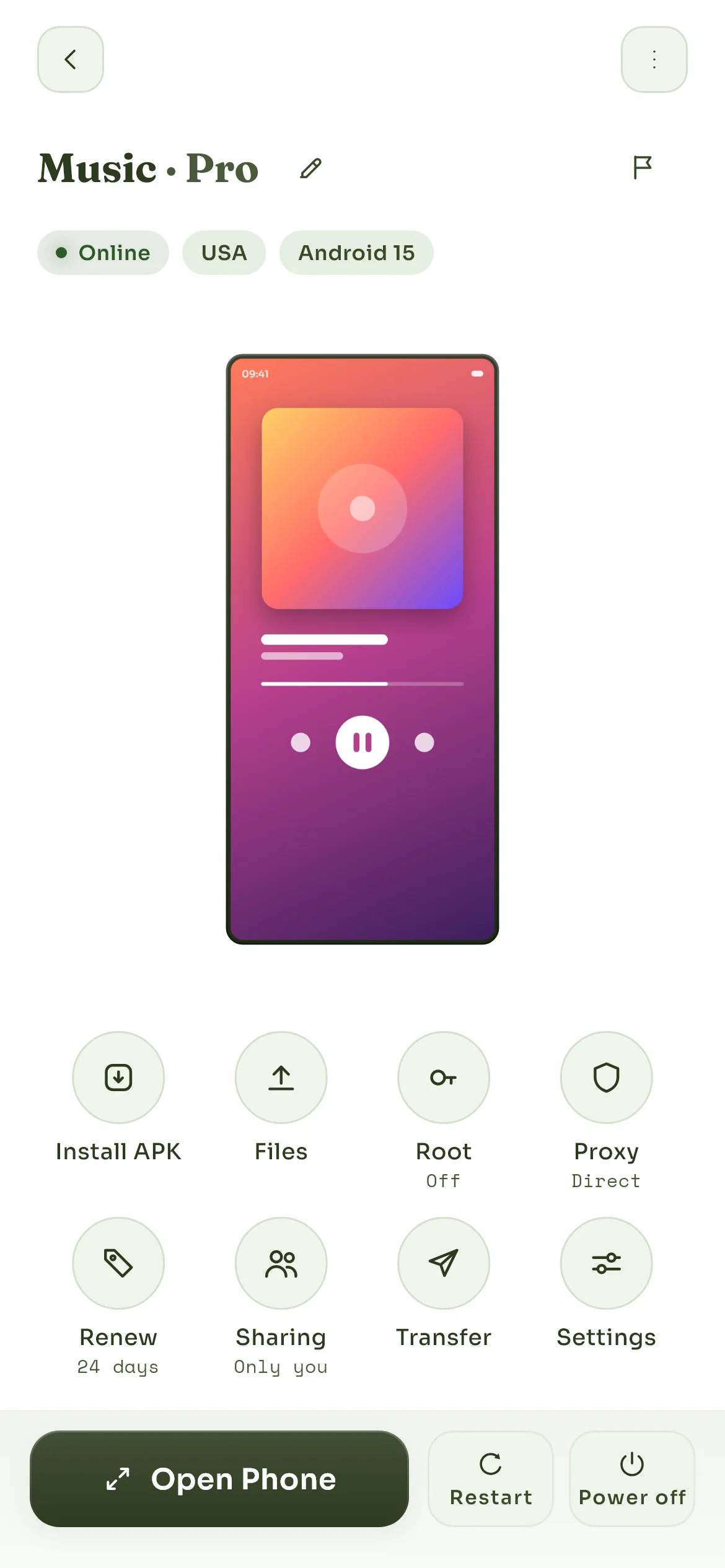
Open Phone streams it; everything else on this screen is there when you need it.
-
Get past the lock screen
A new phone starts with no lock. Swipe up as you would on any Android phone. If you ever set a PIN inside the phone, you will be asked for it here every time, so keep it somewhere safe: we cannot read or reset it.
-
Sign in to Google
Open the Play Store on the phone and sign in with a Google account, exactly as on a new handset. Two-step verification works as normal. The account lives on the phone and we never see its password; Installing apps has more on what to expect from the store.
-
Install an app
Search the Play Store and install as usual. For an app the store does not carry, tap Install APK on the phone's screen in the Skyro Cloud app and pick the file. Some apps refuse a cloud phone; An app says my device is not supported explains which and why.
-
Close the viewer and walk away
The phone keeps running. Downloads finish, the app you opened stays open, and everything is where you left it when you come back. Closing the viewer never stops the phone; only Power off does.
Next
- Controls and gestures in the viewer for typing, rotating and the clipboard.
- Keeping the phone running while you are away for renewals and storage.
- Moving files for getting things on and off it.
Still stuck? Write to us and we will answer.